
A little help. A lot less looking.
Somewhere nearby.
Let’s find it.
Keys, glasses, the remote. Tell Findlet what’s missing,
then let your iPhone or iPad camera help you look.
Coming soon for iPhone & iPad · iOS 26+

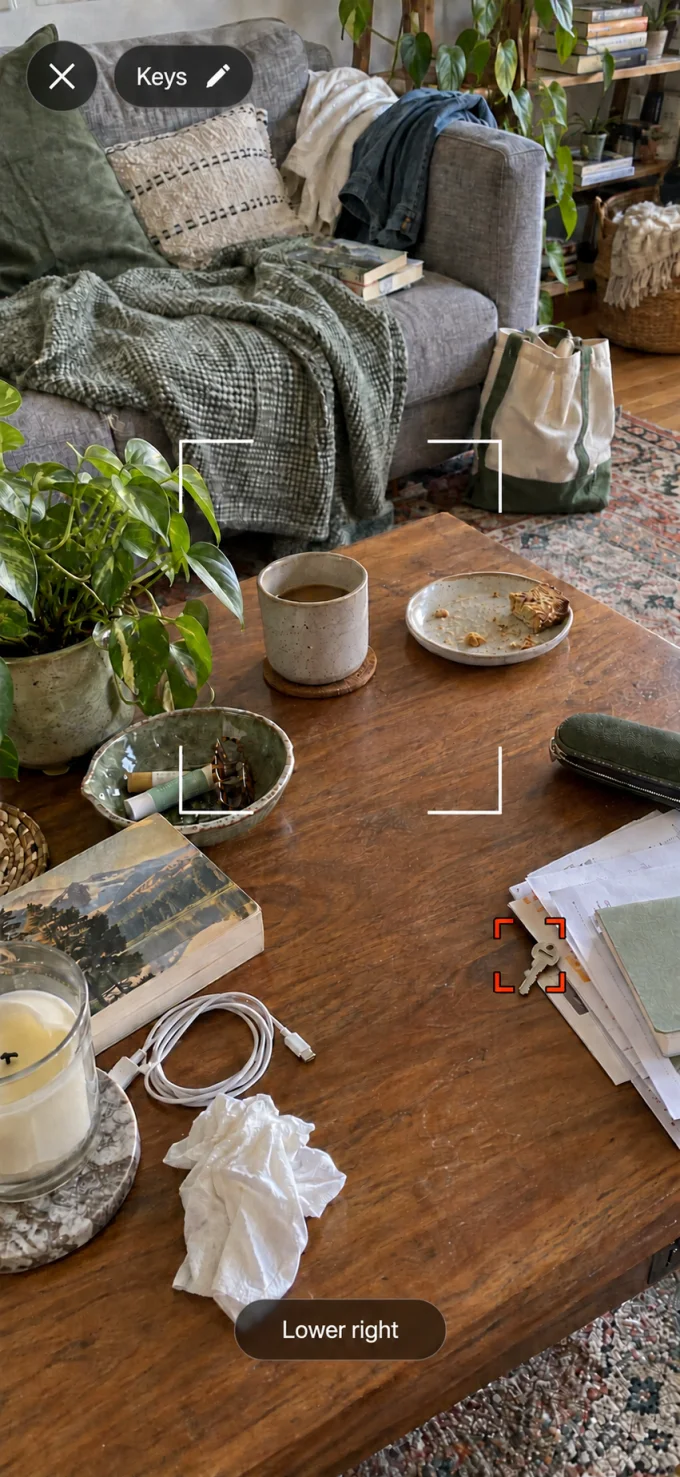

App preview with an illustrative room scene.
A familiar little routine
Say it. Scan it.
Spot the possibilities.
No inventory to set up. Just start with what you’re looking for.
-
“Where are my keys?”
1
Tell Findlet.
Tap the blue character, say what you need, and tap again to finish. Prefer typing? That works too.
-
Take a slow look around.
2
Scan your space.
Move your camera slowly across the table, sofa or room. Give it a clear view and a little light.
-
There’s a possible match.3
Take a closer look.
Follow the highlighted match and on-screen direction. Check the real object to make sure it’s yours.
At home. On your device.
Your things are personal.
So is the search.
Your camera images and voice are processed on your device. Findlet doesn’t upload them or save a camera history.
Once the system language resources are installed, finding works offline, too.
How Findlet handles your dataFirst use may need a language download.
Say it your way.
A small helper. A simple purchase.
Try three finds.
Keep a little help for life.
Your first three successful finding sessions are free. If Findlet feels at home on your device, unlock unlimited finding with one purchase.
One-time purchase. No subscription.Available when Findlet launches. Your local price will be shown in the app. Restore purchases with your Apple Account.
What can Findlet help me find?
Visible everyday objects, such as keys, glasses, a remote, a wallet or a phone. Say or type a short description, then scan the area where you think you left it. Small objects, clutter and low light can make matching harder.
Do I need to photograph my things first?
No. There’s no item catalog to build and no tracking tag to attach. You can describe what you’re looking for when you need it.
Can it find something inside a drawer?
Findlet needs to see the object through the camera. It can’t see through closed drawers, walls or other obstructions, and it doesn’t provide GPS or Bluetooth tracking. Open the drawer or move an obstruction before scanning.
Can I use it to find my phone?
Yes—use another compatible iPhone or iPad running Findlet to scan for the misplaced phone. Findlet helps spot a visible phone; it cannot make the phone ring or locate it on a map.
Which devices and languages does it support?
Findlet is designed for iPhone and iPad with iOS 26 or iPadOS 26 or later. It supports English, Simplified and Traditional Chinese, Japanese, Korean, Spanish, French, German and Portuguese. Some languages require a first-use system resource download.
Is Findlet available on the App Store yet?
Findlet is coming soon. This website will link to the App Store once the app is publicly available. You’ll be able to try three successful finds free, with an optional one-time purchase for unlimited finding.
Hello, fellow misplacer.